
How to Find Out Who Unlocked Your iPhone
Wondering who unlocked your iPhone while you were away? Learn what iOS can reveal, how to check recent activity, and how Crook Catcher helps detect future unauthorized access.
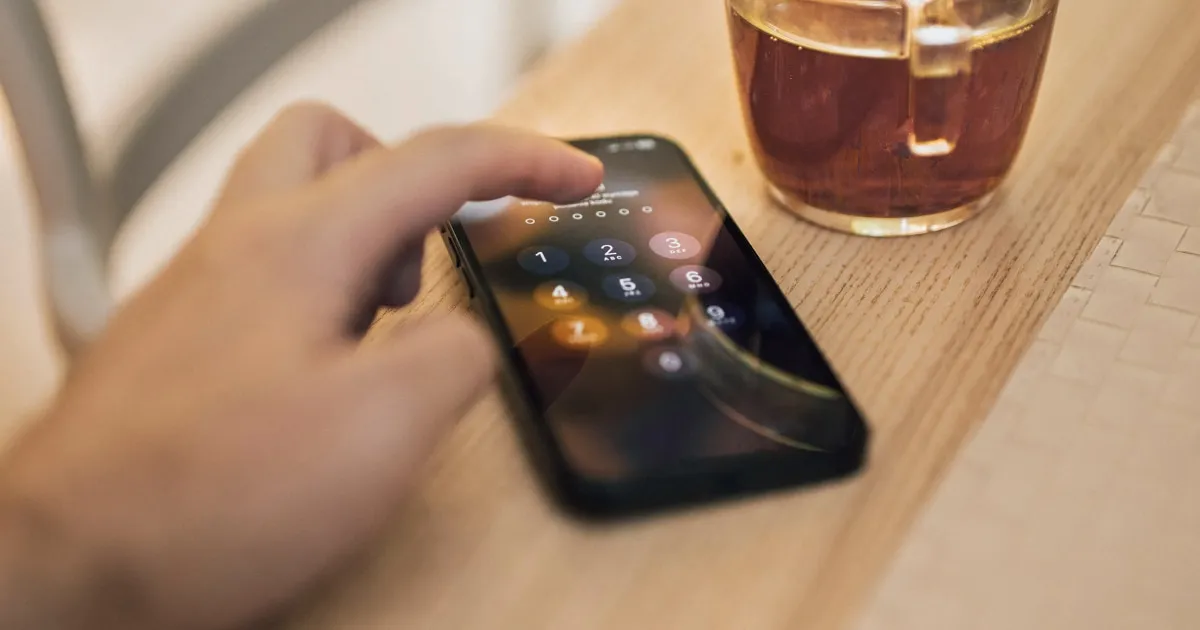
Can you see who unlocked your iPhone?
If you suspect someone has been using your iPhone while you were away, you naturally want a direct answer: who unlocked it, and what did they look at?
Unfortunately, iOS does not maintain a user-accessible unlock history log. You cannot open Settings and view a chronological list of successful unlocks paired with names or photographs.
However, you can check system activity for circumstantial clues and set up active tools to document future unauthorized access attempts.
1. Checking Screen Time for usage footprints
Screen Time is your primary native tool for reviewing device activity history.
To inspect recent patterns:
- Open Settings → Screen Time.
- Tap See All App & Website Activity.
- Review hourly and daily charts for application launches during periods when your phone was left unattended (such as overnight or while you were away from your desk).
What Screen Time can (and cannot) tell you
Screen Time flags unusual activity—such as a messaging app or browser opening when you were away. However, it cannot identify who was holding the device. App activity and device pickups represent usage metrics, not a person’s identity. Use Screen Time as a diagnostic clue rather than absolute proof.
2. Reviewing circumstantial clues
If Screen Time leaves questions unanswered, examine individual apps and system settings for signs of intrusion:
- App activity: Check messaging apps for unread threads marked as read, or Safari history for unfamiliar browsing sessions.
- Apple Account devices: Go to Settings and tap your name to verify that every device listed under your account is recognized.
- System settings: Look for unexpected alterations to notification preferences or app permissions.
While these indicators raise valid concerns, they remain circumstantial. They cannot definitively prove who unlocked your device or establish intent.
3. Why iOS does not log who unlocked your phone
Apple prioritizes strict end-user privacy. Face ID, Touch ID, and passcodes are designed strictly as access control mechanisms, not auditing tools.
To clarify common misconceptions:
- Was the phone picked up? Screen Time tracks device pickups.
- Was the phone unlocked? iOS does not save a public unlock log.
- Who held the device? Native usage stats cannot determine a person’s identity.
Recognizing these technical limits saves you from searching for data that iOS simply does not collect.
4. How to detect future access with intruder capture tools
Because historical logs cannot reveal past unlocks, proactive monitoring is essential if you want concrete answers moving forward.
Applications like Crook Catcher bridge this gap by combining movement-triggered anti-theft alarms with an automated front-camera capture feature. Under supported operating conditions:
- Intruder Selfie Capture: If an unauthorized user attempts to unlock your phone or fails the passcode entry, the app quietly captures a front-camera photo to document the event.
- Motion Alarm: If you leave your device on a desk, arming the anti-theft alarm sounds an immediate acoustic warning the instant the phone is picked up or shifted.
By setting up Crook Catcher in advance, you move from guessing what happened in the past to capturing definitive evidence during future incidents.
Download Crook Catcher on the App Store
5. Hardening your iPhone against unauthorized access
Pairing detection tools with strict device hygiene significantly reduces the risk of future intrusions:
- Use a strong passcode: Switch from a standard 4-digit PIN to a custom alphanumeric passcode (
Settings → Face ID & Passcode). - Hide Lock Screen previews: Prevent private messages from flashing across your locked display (
Settings → Notifications → Show Previews). - Lock sensitive apps: Utilize built-in app locking options for financial or personal messaging applications.
Summary: Choosing the right approach
| Your Goal | Recommended Action |
|---|---|
| Review past device usage | Check Screen Time and app histories for unusual activity windows. |
| Identify past unlockers | Understand that iOS does not generate historical user unlock logs. |
| Catch future intruders | Configure Crook Catcher in advance for selfie capture and motion alarms. |
| Secure your personal data | Update your lock screen passcode and hide notification previews. |
If you want absolute peace of mind when leaving your device in shared or public spaces, combine strong native passcodes with Crook Catcher on the App Store to protect and monitor your iPhone.
Frequently asked questions
- Can I see who unlocked my iPhone?
- No. iOS does not maintain an unlock log or a person-specific history identifying who accessed the device.
- Can I check if someone unlocked my iPhone while I was away?
- You can review Screen Time and app activity for unexpected usage windows, but these clues do not provide the identity of the person.
- Can Crook Catcher tell me who accessed my iPhone?
- Yes, under supported conditions, Crook Catcher uses the front camera to capture a selfie photo when an unauthorized unlock attempt occurs.
- Can an app reconstruct past unlocks?
- No third-party app can retrieve a historical log of past unlocks that iOS failed to record.
- Does Screen Time show who used my iPhone?
- Screen Time tracks app launches and pickup frequencies over time, but it cannot name the person holding the device.
Get Crook Catcher on the App Store
Keep an Eye on Your Phone
Protect your iPhone & iPad with a movement-triggered anti-theft alarm and unlock-triggered intruder detection. Free to download for iPhone and iPad.

Keep reading
How to Catch Someone Snooping on Your Phone
Think someone is going through your iPhone without permission? Learn how to spot unauthorized access, protect your privacy, and capture snoopers.
How to Know If Someone Is Using Your Phone Without Permission
Learn how to check whether someone has accessed your iPhone without permission, spot unusual activity, secure your accounts, and detect possible future intrusions.
What Is Crook Catcher? How Phone Intruder Detection Works
Discover what Crook Catcher does, how iPhone intruder detection works, and how it differs from anti-theft alarms and anti-spyware apps.