How to Protect Your Phone From Snooping at Work
Learn how to protect your iPhone from coworkers or other people snooping at work. Secure your passcode, hide notifications, review account access, and keep sensitive information private.
Why phone privacy matters in the workplace
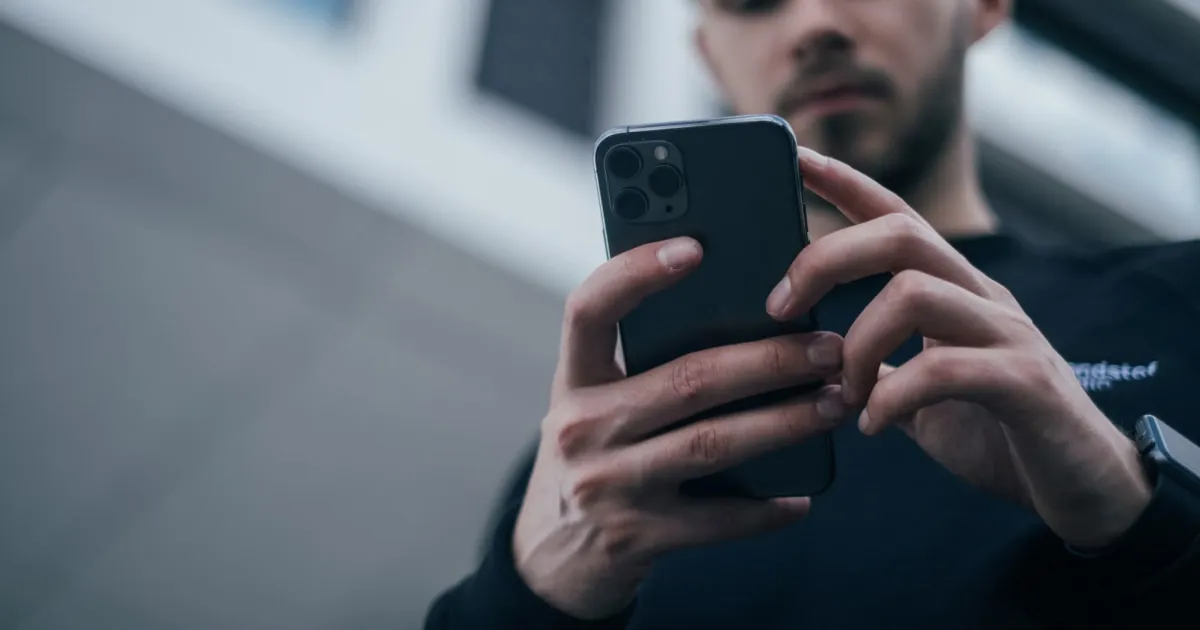
An iPhone sitting on an office desk contains personal messages, authentication codes, financial applications, and private photographs. In open-plan offices, shared desks, or busy meeting spaces, curiosity or shoulder-surfing can easily expose your private life.
Establishing clear workplace digital boundaries protects your personal data without creating tension with colleagues.
1. Always lock your iPhone when stepping away
An unlocked device left on an office desk grants direct access to your personal files and active app sessions.
Build the habit of pressing the side button to lock your screen whenever you:
- Step away to grab a coffee or attend a meeting.
- Leave your phone charging at a shared desk or wall outlet.
- Walk away from your workspace for a break.
Use a custom alphanumeric passcode (Settings → Face ID & Passcode) rather than a simple 4-digit PIN that coworkers could easily shoulder-surf while standing nearby.
2. Hide sensitive notifications on the Lock Screen
Notification pop-ups on a desk-bound phone can display incoming private messages or two-factor authentication codes to anyone walking past your workspace.
- Go to Settings → Notifications → Messages.
- Tap Show Previews and set it to When Unlocked (or Never).
Apply this setting across email, messaging apps, and social platforms to keep incoming alerts private until you authenticate via Face ID.
3. Understand personal vs. work device management (MDM)
If you use your personal iPhone to access work email or Slack, your employer may require a Mobile Device Management (MDM) profile.
- What IT can manage: Password complexity, remote wiping of work data, enforced encryption, and VPN configurations.
- What IT cannot see: Personal text messages, private photos, personal browser history, or local app data.
Review active management profiles anytime under Settings → General → VPN & Device Management.
4. Deploy motion and disconnect alarms for unattended desk charging
When leaving your phone charging at a desk in a shared office space, acoustic deterrents prevent coworkers from picking up or unplugging your device.
Gotcha offers targeted workplace protection:
- Motion Alarms: Triggers a loud alert if someone lifts or shifts your phone off your desk.
- Charger Disconnect Alarms: Sounds an alarm immediately if someone unplugs your charging cable to use the outlet for themselves.
- Intruder Photo Capture: Takes a selfie photo if an unauthorized user attempts to unlock your phone under supported conditions.
Read our guide on How to Secure Your Phone When You Leave It Unattended.
Workplace Security Checklist
| Protective Layer | Action Item | Status |
|---|---|---|
| Passcode Hygiene | Custom alphanumeric passcode enabled | [ ] |
| Notification Privacy | Lock Screen previews set to “When Unlocked” | [ ] |
| Physical Defense | Device locked immediately upon stepping away | [ ] |
| Active Monitoring | Gotcha motion alarms armed at desk | [ ] |
Protect your personal privacy at work
Combining proper passcode hygiene, hidden notification previews, and Gotcha ensures your personal life remains private, even in shared or open-plan work environments.
Download Gotcha on the App Store to enable desk motion alarms and intruder detection today.
Frequently asked questions
- How can I stop coworkers from going through my phone?
- Use a strong passcode, enable Face ID, lock your iPhone when you step away, hide sensitive notification previews, and avoid leaving private apps open on your screen.
- Can my coworkers read my iPhone messages when it is locked?
- They may see message previews if your notification settings allow them. Set Show Previews to When Unlocked or Never to reduce what is visible on the Lock Screen.
- Should I install an anti-theft alarm for my phone at work?
- An anti-theft alarm provides an immediate acoustic alert when someone picks up or unplugs your device at your desk or charging station.
- Can an employer monitor my personal iPhone?
- Personal devices enrolled in Mobile Device Management (MDM) permit specific security policies, but employers cannot inspect private photos, personal messages, or device camera feeds.
Get Gotcha on the App Store
Keep an Eye on Your Phone
Protect your iPhone & iPad with a movement-triggered anti-theft alarm and unlock-triggered intruder detection. Free to download for iPhone and iPad.

Keep reading
How to Protect Your Phone From Curious Friends and Family
Learn how to protect your iPhone from curious friends and family without creating unnecessary conflict. Secure your passcode, hide private notifications, and prevent unwanted access to personal information.
How to Secure Your Phone When You Leave It Unattended
Learn how to secure your iPhone when you leave it unattended at home, work, or in public. Discover practical ways to prevent unauthorized access, protect private data, and get alerts when someone handles your phone.
How to Keep Someone From Going Through Your Phone
Learn how to stop people from going through your phone without permission. Secure your iPhone with a strong passcode, protect private notifications, review account access, and reduce unwanted snooping.