Anti-Spy Apps for iPhone: What They Can and Cannot Detect
Learn what anti-spy apps can actually detect on iOS, understand system security limits, and protect your iPhone from spyware and physical snooping.
What can an anti-spy app actually do on iOS?
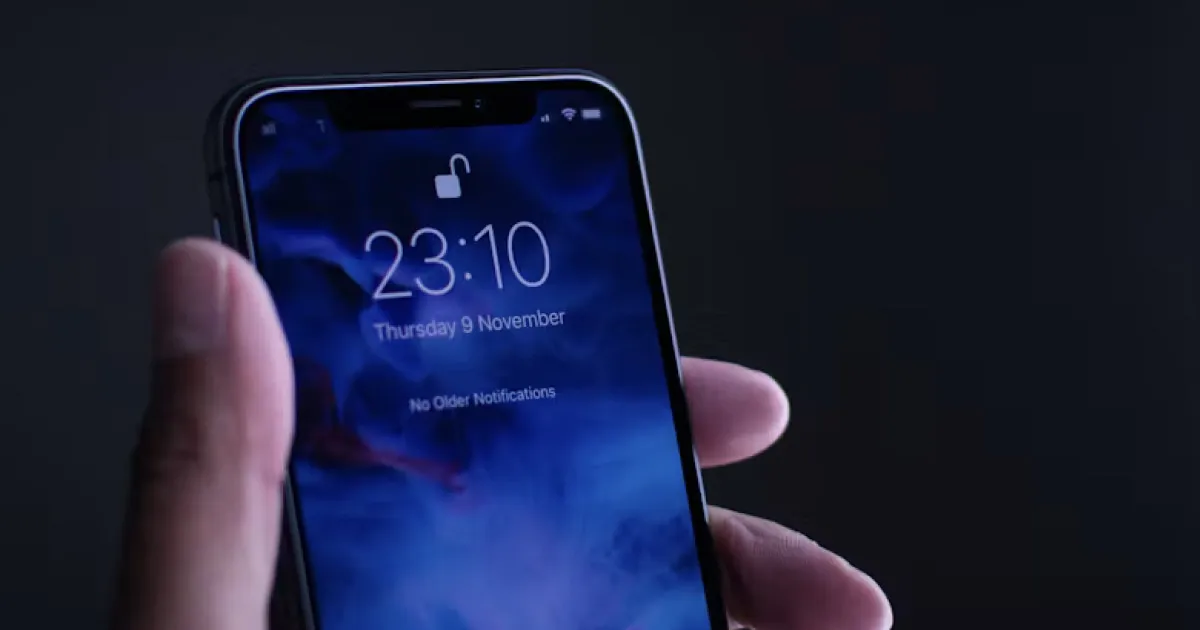
If you suspect someone is monitoring your iPhone, you might naturally search for an “anti-spy app” to scan your device. However, iOS handles security differently than Android or desktop operating systems.
Due to iOS sandboxing, every application runs in its own isolated container. No third-party app can scan your entire file system, monitor other apps in the background, or perform a full “antivirus-style” sweep for hidden spyware.
Anti-spy and security applications on iOS cannot automatically remove malware for you. Instead, legitimate privacy tools help you:
- Audit app permissions and hardware access (Camera, Microphone, Location).
- Monitor background network domain connections.
- Detect physical unauthorized access or physical tampering.
- Guide you through auditing Apple Account device access and configuration profiles.
Understanding this technical limit prevents you from falling for deceptive security apps that claim to perform “full system spyware scans.”
1. Spyware vs. Physical Snooping: What are you protecting against?
People often use the term “spying” to describe very different security threats. Choosing the right response requires identifying the exact issue:
| Threat Type | How It Happens | Effective Fix / Tool |
|---|---|---|
| Digital Spyware / Malware | Malicious profiles, exploited system vulnerabilities, or unauthorized jailbreaking. | Update iOS, remove unrecognized Configuration Profiles, perform factory restore. |
| Account Compromise | Someone knows your Apple ID password or has access to synced iCloud data. | Change Apple ID password, enable 2FA, remove unrecognized devices in Settings. |
| Physical Snooping | Someone picks up your unlocked iPhone or enters your passcode to read messages/photos. | Use a strong passcode, hide notification previews, use Gotcha for intruder capture. |
| Excessive Data Tracking | Legitimate apps tracking location, contacts, or ad identifiers beyond what is necessary. | Audit iOS Privacy & Security settings, enable App Privacy Report. |
| Unwanted Location Sharing | Location shared via Find My or location-sharing apps with friends/family. | Run iOS Safety Check (Settings → Privacy & Security → Safety Check). |
Installing a single security app won’t stop someone who simply knows your lock screen passcode or has access to your iCloud web login.
2. How to audit iPhone app permissions
To stop legitimate apps from gathering data unnecessarily, review your active hardware and data permissions:
- Open Settings → Privacy & Security.
- Review critical categories: Location Services, Camera, Microphone, Photos, Contacts, and Local Network.
- Revoke access for any app that doesn’t strictly require it to function.
Revoking unnecessary permissions prevents apps from collecting data in the background, but it won’t remove malicious configuration files if a device has been manually tampered with.
3. Inspect active app activity with App Privacy Report
Apple includes a native tool designed to monitor how apps behave over time.
To enable and view it:
- Go to Settings → Privacy & Security → App Privacy Report.
- Tap Turn on App Privacy Report.
Once active, iOS logs every time an app accesses your sensors (Camera, Microphone, Location) or connects to network domains.
If an offline utility app (like a calculator or flashlight) routinely connects to unfamiliar external domains, that is a clear red flag to delete the app immediately.
For full technical specifications, check Apple’s App Privacy Report Guide.
4. Check for hidden Configuration Profiles and Device Management
Configuration profiles allow external settings to be applied to an iPhone. While widely used by employers and schools, unauthorized profiles can be misused to route traffic or bypass standard restrictions.
To check for installed profiles:
- Go to Settings → General → VPN & Device Management.
- Look under Configuration Profile or Mobile Device Management.
If you see a profile you did not explicitly install or that isn’t managed by your workplace/school, tap it and select Remove Profile.
5. Misleading “Spyware Symptoms”: What to look out for
Many online sources claim that battery drain, high data usage, or a warm device mean spyware is installed. In reality, these are usually caused by:
- Aging battery health or corrupted iOS background processes.
- High-frequency background app refresh or cloud syncs.
- Poor cellular signal causing the modem to draw extra power.
Instead of relying on vague physical symptoms, look for concrete evidence: unrecognized devices listed in your Apple ID settings, active sharing relationships in Find My, or unauthorized apps installed on your home screen.
6. How to stop physical snoopers and unauthorized access
If your primary concern isn’t remote malware, but rather a friend, partner, coworker, or thief physically handling your iPhone when you leave the room, standard anti-spy software won’t help.
To detect and prevent physical snooping:
- Change your passcode: Switch from a 4-digit PIN to an alphanumeric passcode (
Settings → Face ID & Passcode). - Hide Lock Screen Notification Previews: Go to
Settings → Notifications → Show Previewsand select When Unlocked. - Use intruder detection tools: Gotcha combines motion-activated sound alarms with a front-camera intruder capture feature. If someone picks up your phone or attempts unauthorized access, the app sounds an immediate alarm and captures a selfie photo of the individual in supported conditions.
Read our complete breakdown on How Phone Intruder Detection Works.
The bottom line on iPhone anti-spy protection
No third-party app can offer a “one-click spyware removal” on iOS due to Apple’s system architecture.
True iPhone privacy requires a combination of good habits: keeping iOS updated, auditing permissions via App Privacy Report, securing your Apple Account, and using specialized tools like Gotcha to guard against physical tampering and unauthorized handling.
Frequently asked questions
- Do anti-spy apps work on iPhone?
- No app can scan the entire iOS system due to sandboxing. Anti-spy and privacy apps help by auditing permissions, reviewing sharing settings, and flagging suspicious configurations.
- Can an iPhone app detect all spyware?
- No. Security protections in iOS prevent apps from reading data outside their own environment. Detecting deeper compromises requires auditing system profiles, Apple Account access, or using specialized Apple tools.
- How can I check whether someone is spying on my iPhone?
- Check App Privacy Report, review connected devices in your Apple Account settings, inspect installed Configuration Profiles under VPN & Device Management, and run iOS Safety Check.
- Can an anti-spy app tell me who unlocked my iPhone?
- Traditional security tools do not log unlock attempts. Specialized intruder detection apps like Gotcha can capture a front-camera selfie during unlock attempts under supported conditions.
- Is an anti-theft alarm the same as an anti-spy app?
- No. An anti-theft alarm deters physical movement or charger disconnects using audio alerts, whereas anti-spy tools focus on data privacy and permission monitoring.
- What should I do if I think my iPhone is being monitored?
- Change your Apple Account password, enable two-factor authentication, update iOS, run Safety Check, and remove any unrecognized Configuration Profiles or unexpected apps.
Get Gotcha on the App Store
Keep an Eye on Your Phone
Protect your iPhone & iPad with a movement-triggered anti-theft alarm and unlock-triggered intruder detection. Free to download for iPhone and iPad.

Keep reading
How to Stop Someone From Reading Your Text Messages
Learn how to stop someone from reading your text messages on iPhone. Secure your passcode, hide message previews, review linked devices, and protect your private conversations.
How to Keep Someone From Going Through Your Phone
Learn how to stop people from going through your phone without permission. Secure your iPhone with a strong passcode, protect private notifications, review account access, and reduce unwanted snooping.