How to Stop Someone From Reading Your Text Messages
Learn how to stop someone from reading your text messages on iPhone. Secure your passcode, hide message previews, review linked devices, and protect your private conversations.
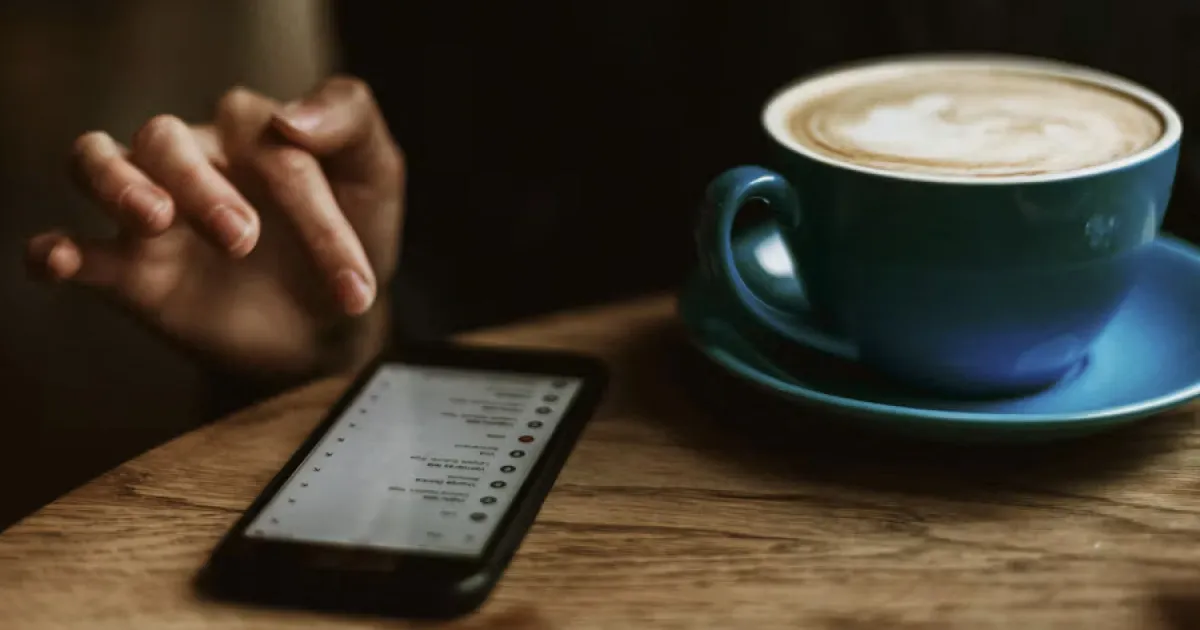
1. Secure your iPhone with a strong passcode
If someone can unlock your device, they can open the Messages app and read your conversations directly.
- Use a complex alphanumeric code instead of a simple 4-digit PIN (
Settings → Face ID & Passcode). - Enable Face ID or Touch ID for frictionless biometric authentication.
- Never share your passcode or enter it where others can observe your keystrokes.
2. Hide message previews on the Lock Screen
Incoming text messages can expose private conversations right on your Lock Screen even when your device is locked.
- Open Settings.
- Tap Notifications.
- Select Messages.
- Tap Show Previews and set it to When Unlocked (or Never for maximum privacy).
This prevents casual onlookers from glancing at incoming texts when your phone rests on a desk or table.
3. Review devices signed in to your Apple Account
Your iMessages sync across other Apple devices linked to your iCloud account. If an old Mac, iPad, or unrecognized device is signed in, your texts may be visible elsewhere.
- Open Settings and tap your name at the top.
- Scroll down to review the connected device list.
- Tap and remove any hardware you do not recognize or no longer use.
- Update your Apple Account password immediately if unauthorized devices appear.
4. Audit sharing and access with Safety Check
If you are concerned that someone close to you has unauthorized access to your shared info or synced messages:
- Go to Settings → Privacy & Security → Safety Check.
- Use Manage Sharing & Access to review and revoke access granted to specific people, apps, or devices.
5. Detect physical snooping using intruder tools
While iOS doesn’t log who reads individual messages, you can capture physical intrusion attempts using dedicated security tools.
Gotcha combines motion-triggered anti-theft alarms with an automated front-camera capture feature. If an unauthorized user picks up your device or fails biometric unlock attempts under supported conditions, the app captures a selfie photo to provide clear visual evidence.
Frequently asked questions
- How do I stop someone from reading my text messages on my iPhone?
- Use a strong passcode, enable Face ID, hide message previews on the Lock Screen, and review which devices are signed in to your Apple Account.
- Can someone read my texts without unlocking my iPhone?
- Yes, if notification previews are enabled, message content can appear directly on the Lock Screen.
- Can I hide text messages on my iPhone Lock Screen?
- Yes. Go to Settings > Notifications > Messages > Show Previews and select When Unlocked or Never.
- How can I tell if someone has been reading my messages?
- Check Screen Time for unusual app activity and review connected Apple ID devices, though iOS does not maintain a local read history log.
- Does an anti-spy app protect my text messages?
- No. Security relies on locking your device, hiding notification previews, and securing your Apple Account credentials.
Get Gotcha on the App Store
Keep an Eye on Your Phone
Protect your iPhone & iPad with a movement-triggered anti-theft alarm and unlock-triggered intruder detection. Free to download for iPhone and iPad.

Keep reading
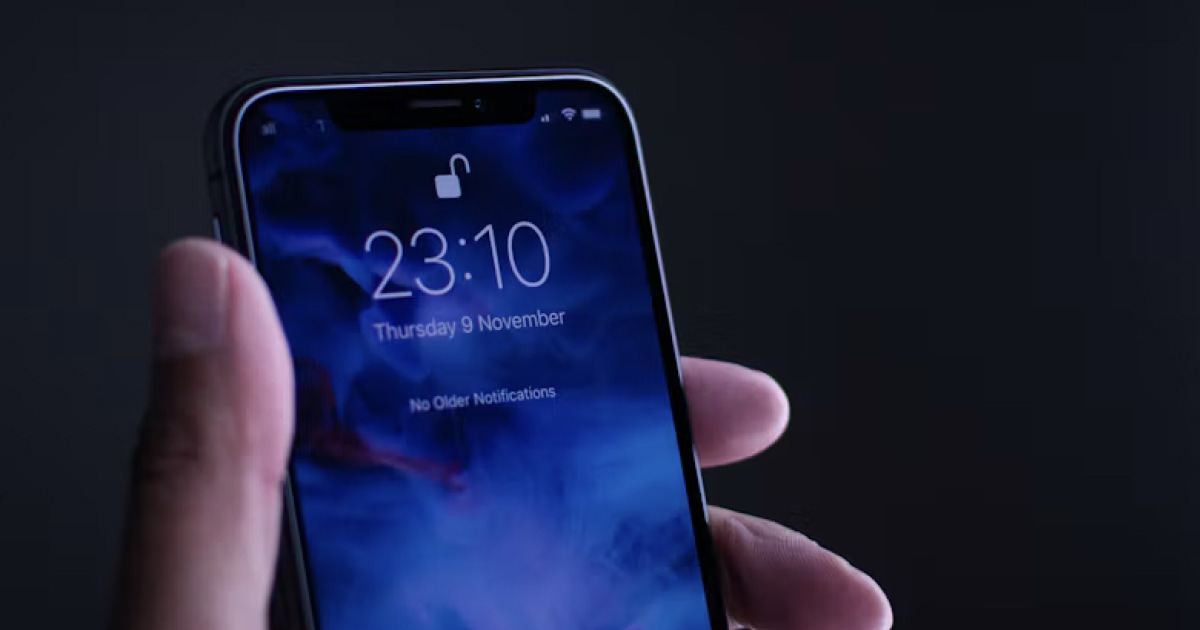
Anti-Spy Apps for iPhone: What They Can and Cannot Detect
Learn what anti-spy apps can actually detect on iOS, understand system security limits, and protect your iPhone from spyware and physical snooping.
How to Catch Someone Snooping on Your Phone
Think someone is going through your iPhone without permission? Learn how to spot unauthorized access, protect your privacy, and capture snoopers.
How to Find Out Who Unlocked Your iPhone
Wondering who unlocked your iPhone while you were away? Learn what iOS can reveal, how to check recent activity, and how Crook Catcher helps detect future unauthorized access.