Can You Tell If Someone Has Been Using Your iPhone?
Learn how to check whether someone has used your iPhone without permission. Review Screen Time, battery activity, Apple Account devices, and other clues.
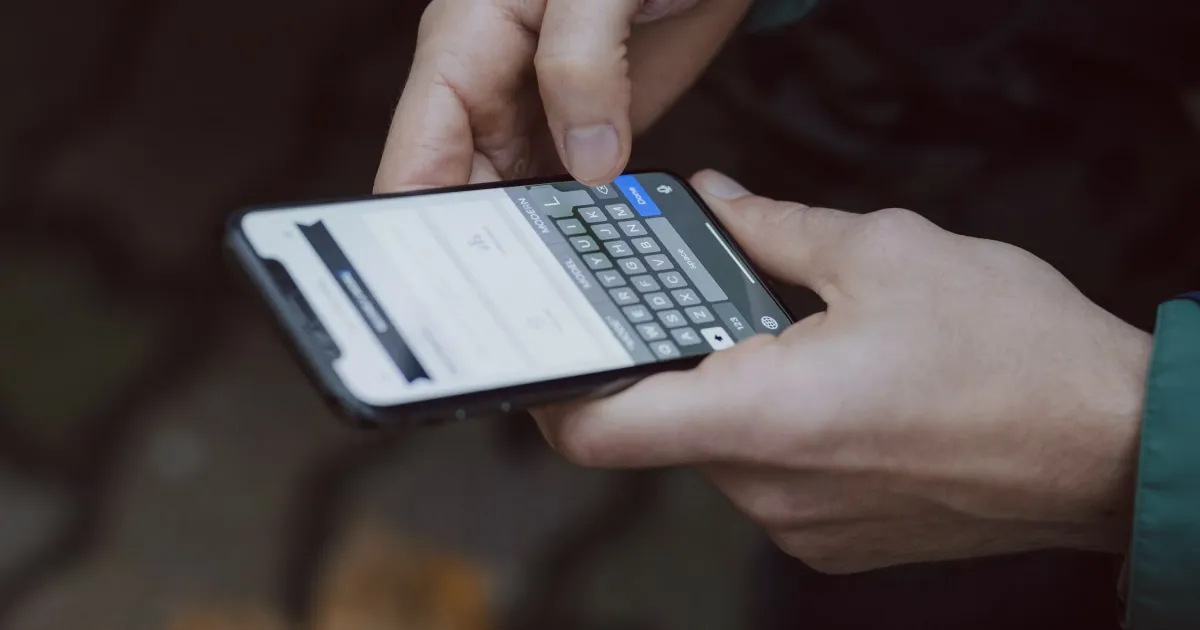
Can you check whether someone has used your iPhone?
Yes, you can look for digital footprints and circumstantial evidence, but iOS does not provide a definitive history log identifying who unlocked your device.
Because Apple prioritizes strict privacy and security, there is no built-in “unlock history” or person-specific access log. However, by cross-referencing system tools like Screen Time, app history, and account settings, you can spot inconsistencies when your phone has been left unattended.
Here is how to investigate potential unauthorized access step by step.
1. Check Screen Time for unexpected app activity
Screen Time is your most reliable native investigative tool for detecting unauthorized usage patterns.
To inspect recent activity:
- Open Settings → Screen Time.
- Tap See All App & Website Activity.
- Check the hourly and daily graphs for app launches during periods when you know your device was left unattended (e.g., overnight or while you were away from your desk).
- Look for unexpected app categories, such as messaging apps, photos, or browsers opening when you weren’t using the phone.
Limitations: Screen Time logs aggregate time and app usage, but it cannot tell you who was holding the device. Background data syncing can also occasionally skew activity graphs.
For complete details, check Apple’s Official Screen Time Guide.
2. Look for physical or in-app clues
Someone opening an unlocked iPhone often leaves behind minor breadcrumbs inside individual apps:
- Messages / Chat apps: Check if unread conversations have been marked as read, or if recent chats show message selections you didn’t make.
- Web browsers: Open Safari and check for unfamiliar tabs in your active or recently closed browsing history.
- Photos app: Look for newly opened albums, recently deleted items, or modified files.
- App Switcher: Swipe up from the bottom of your screen and pause to see which apps were recently active in memory.
If your primary concern is privacy around text messages, read our guide on How to Stop Someone From Reading Your Text Messages.
3. Review battery usage (and its limits)
Many people check the Settings → Battery menu to see if power drain reveals midnight snooping.
While battery statistics show which apps consumed energy over the last 24 hours or 10 days, battery drain is not an access log. Background app refreshes, iCloud backups, mail syncing, and poor cellular reception routinely drain power while the phone sits completely untouched on a nightstand.
Use battery stats only to confirm if a specific app was actively running in the foreground during a suspicious timeframe.
4. Audit devices connected to your Apple Account
If someone has physical access to your device or knows your credentials, they might also access your synced iCloud data from another device.
To verify your account footprint:
- Open Settings and tap your name at the top.
- Scroll down to review the connected device list.
- Tap on any unfamiliar device to verify its details and select Remove from Account if you don’t recognize it.
- Immediately change your Apple Account password if you find unauthorized entries.
Read Apple’s instructions on checking devices signed in to your Apple Account.
5. Inspect privacy, sharing, and Safety Check settings
Check whether sharing permissions have been altered or if external accounts have access to your data:
- Go to Settings → Privacy & Security → Safety Check. This tool lets you instantly audit and revoke sharing access across people, apps, and connected devices.
- Review Location Services to ensure nobody is tracking your movements without authorization.
- Inspect Lock Screen Notifications (
Settings → Notifications → Show Previews) to ensure sensitive messages are hidden while locked.
6. Capturing future access with intruder detection tools
Because historical logs don’t tell you who unlocked an iPhone in the past, proactive monitoring is often necessary if you want concrete answers moving forward.
Applications like Gotcha bridge this gap by combining movement-triggered anti-theft alarms with an automated front-camera capture feature. Under supported conditions, when an unauthorized user attempts to unlock your phone, the app captures a selfie photo so you have clear visual evidence of who handled the device.
While third-party intruder tools cannot prevent every attempt or replace system-level security, they offer definitive clues when devices are left unattended in shared spaces.
Learn more in our guide on How to Find Out Who Unlocked Your iPhone.
7. What to do if you find suspicious activity
If your investigation points toward unauthorized access, secure your device immediately:
- Change your passcode: Switch to a complex alphanumeric passcode that cannot be guessed or observed over your shoulder (
Settings → Face ID & Passcode). - Secure your Apple Account: Update your password and verify your trusted recovery phone numbers.
- Hide notification previews: Prevent private messages from flashing across your locked screen.
- Revoke app permissions: Strip unnecessary hardware access from apps under
Settings → Privacy & Security.
Summary: What checks can and cannot prove
| Investigation Method | What It Can Reveal | What It Cannot Prove |
|---|---|---|
| Screen Time | Active app usage windows during unattended hours | Who was physically holding the device |
| App & Browser History | Opened threads, files, or tabs | Whether the owner or an intruder opened them |
| Battery Settings | Energy consumption by specific apps | Proof of active snooping vs. background sync |
| Apple Account List | Devices linked to your cloud ecosystem | Remote access via direct physical device unlocking |
| Intruder-Detection App | Front-camera photo evidence during unlock attempts | Guaranteed detection of every single physical handling event |
Protect your iPhone from unauthorized access moving forward
While iOS won’t hand you a complete list of past unlock events, combining Screen Time checks, Apple ID audits, and strict passcode hygiene gives you a clear picture of your device’s security status.
For ongoing peace of mind when leaving your phone unattended, explore Gotcha on the App Store to add motion alarms and front-camera intruder capture to your security setup.
Frequently asked questions
- Can I see if someone unlocked my iPhone?
- No. iOS does not maintain an unlock log or a personal history identifying who accessed the device.
- Can Screen Time show if someone used my iPhone?
- Yes, Screen Time tracks app usage over time. It can flag unusual activity during hours you weren't using your phone, though it won't name the person.
- Does battery usage prove someone used my iPhone?
- No. Background processes, sync tasks, and normal aging consume battery power independently of active device usage.
- Can an app take a photo of someone who accesses my iPhone?
- Yes. Third-party utility apps like Gotcha can use the front camera to capture a selfie during unlock attempts under supported operating conditions.
- What should I do if I suspect unauthorized access?
- Update your lock screen passcode, review active devices in your Apple Account, hide sensitive notification previews, and run iOS Safety Check.
Get Gotcha on the App Store
Keep an Eye on Your Phone
Protect your iPhone & iPad with a movement-triggered anti-theft alarm and unlock-triggered intruder detection. Free to download for iPhone and iPad.

Keep reading
How to Find Out Who Unlocked Your iPhone
Wondering who unlocked your iPhone while you were away? Learn what iOS can reveal, how to check recent activity, and how Crook Catcher helps detect future unauthorized access.
How to Know If Someone Is Using Your Phone Without Permission
Learn how to check whether someone has accessed your iPhone without permission, spot unusual activity, secure your accounts, and detect possible future intrusions.
How to Stop Someone From Reading Your Text Messages
Learn how to stop someone from reading your text messages on iPhone. Secure your passcode, hide message previews, review linked devices, and protect your private conversations.